
GammaOS Nano is the console-style interface at the heart of GammaOS, a customized Android firmware for handhelds. It is the first thing you see when the device starts, and it is far more than a launcher: it has its own built-in music, photo, and video players, a controller-friendly web browser, IPTV and internet radio, network shares, and the full system settings, all wrapped in a smooth, console-like home.
Because GammaOS is a full firmware, Nano is tied into the system itself: brightness, performance modes, shaders, controller remapping, RGB lighting, and audio tuning are all reachable from the same interface. Think of it as the front door to your handheld, built to feel smooth and console-like, to look great at any screen size or orientation, and to stay out of your way when you just want to play.
Nano and the OS underneath
Nano is a microOS: a light, console-style layer that runs on top of a full copy of GammaOS. GammaOS itself is a complete Android based firmware, and it comes in three editions. Your handheld runs one of them, with Nano sitting on top as the home you boot into.
The three editions:
- GammaOS Core is the most lightweight edition, built on Android TV. It is best suited to devices with lower specifications or no touch screen.
- GammaOS Lite is built on standard Android, the phone and tablet style system, without Google apps or the Play Store.
- GammaOS Full is the standard Android edition with Google apps and the Play Store included, for when you want to install straight from Play on the device.
You may also see the name GammaOS Next. That is the current generation of GammaOS as a whole: Core, Lite and Full are all GammaOS Next editions, and Nano is the console home that ships on top of them.
Which edition should I choose? It depends on your device and whether you want Google apps. Core is the lightest and suits lower-powered devices or ones without a touch screen. Lite is the standard choice, a normal Android base without Google apps or the Play Store. Pick Full only if you want the Google Play Store on the device. On devices that boot from an SD card, use a good A2-rated card where possible; an A1 card works but loads more slowly.
Whichever edition your device ships with, it boots straight into Nano. There is nothing to set up: Nano is the default home. The full Android system underneath never goes away, so you can switch to desktop or TV mode for a normal app, a browser or the Play Store, then drop back into Nano for games and media. That switch is a single setting, and your games, saves and apps stay in place either way. See Desktop Mode Features.
Think of Nano as the console shell, and Core, Lite or Full as the engine room underneath. Nano keeps the everyday experience fast and controller friendly, while the full OS stays one step away.
How the home screen works
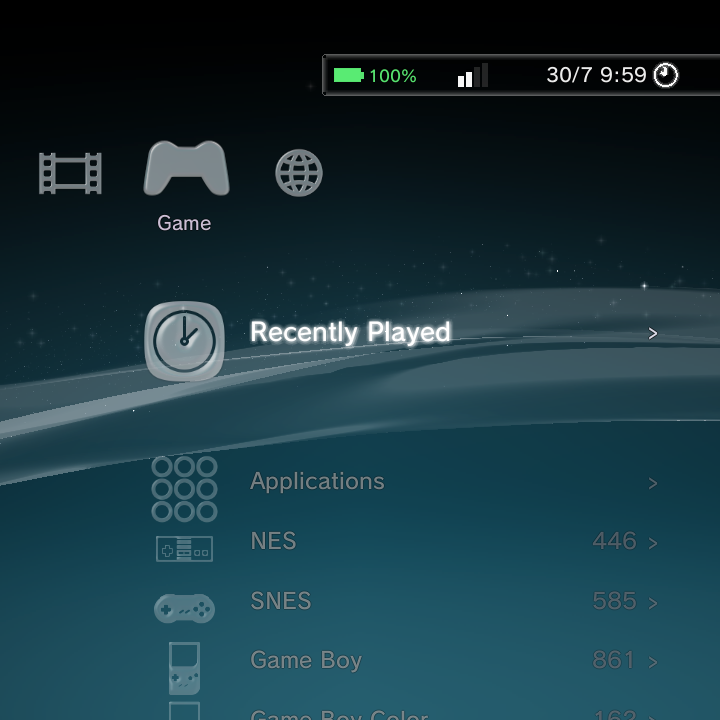
The home is organized into a small set of categories that you move between. On the GammaOS XMB theme they sit across the top of the screen, and the items for the selected category drop down in a vertical list beneath it. Move sideways to change category, and up or down to move through the items.
The categories are:
| Category | What is inside |
|---|---|
| Settings | The full settings tree: themes, network, display, sound, gamepad, and more. |
| Photo | Your pictures, in a full-screen viewer with a thumbnail grid and slideshow. |
| Music | Albums, playlists, and tracks, with a now-playing screen and internet radio. |
| Video | Your videos and folders, plus a full player and live IPTV channels. |
| Game | Your games grouped by system, plus your apps, collections, and recently played. |
| Network | Wi-Fi and Bluetooth setup, plus your SMB, NFS, WebDAV, and FTP shares. |
You can reorder or hide these categories to suit how you use your device. See Settings Reference for the Home Categories option.
Three themes at a glance
GammaOS Nano comes with three switchable looks, and they all drive the same interface underneath:
- GammaOS XMB, a PlayStation 3 style layout with a flowing wave background and glass icons.
- DSi Menu, a Nintendo DSi style carousel of glossy tiles.
- Minima, a clean, minimal text list on a black canvas.
Switch between them any time in Settings > Theme Settings > Home Theme. For the full breakdown of each one, see Home Themes.
What it does
Nano gets you into your games and media fast, and handles a lot itself along the way:
- Games run through emulators, either RetroArch cores or standalone emulator apps. See Emulators.
- Nintendo DS games use the built-in DraStic Nano emulator.
- Media (music, photos, and video) plays right inside Nano, with its own players. See Media.
- Web, radio, and TV: a controller-friendly browser, internet radio in Music, and live IPTV channels in Video are all built in.
- Network shares over SMB, NFS, WebDAV, and FTP mount as if they were local storage. See Network Shares.
- Apps you install appear in the Game category and launch just like a game. See Applications.
When you exit a game, an app, or a media player, you come straight back to the home where you left off.
Ready to set things up? Head to Getting Started.