
GammaOS Nano gives you four complete home themes in one interface: three of its own, plus a theme engine that draws real EmulationStation-DE theme sets. Pick the look you love and everything (games, media, apps, Settings) reshapes to match.
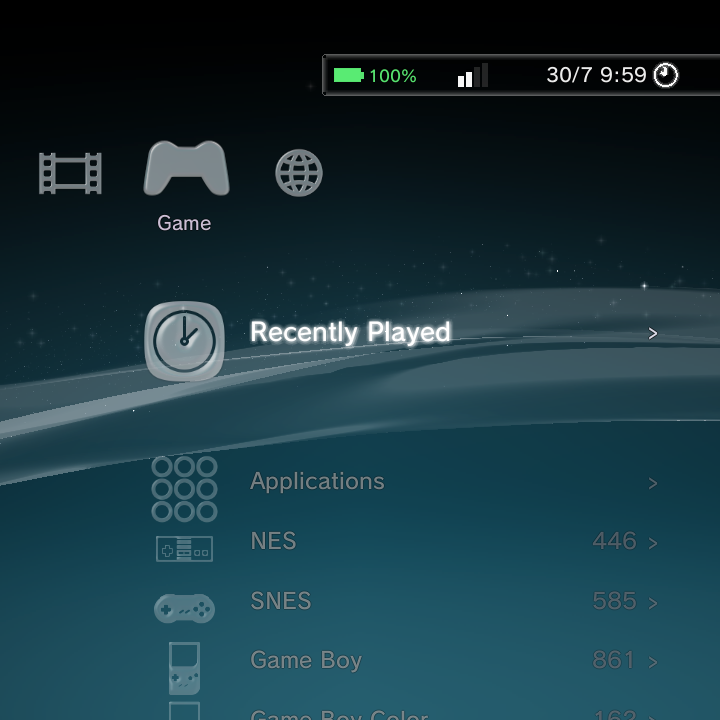
PlayStation 3 style
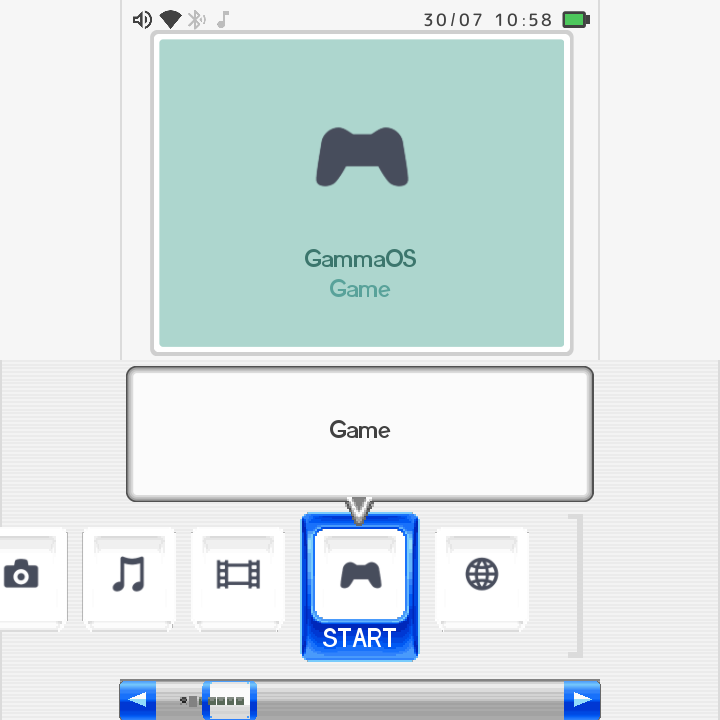
Nintendo DSi style
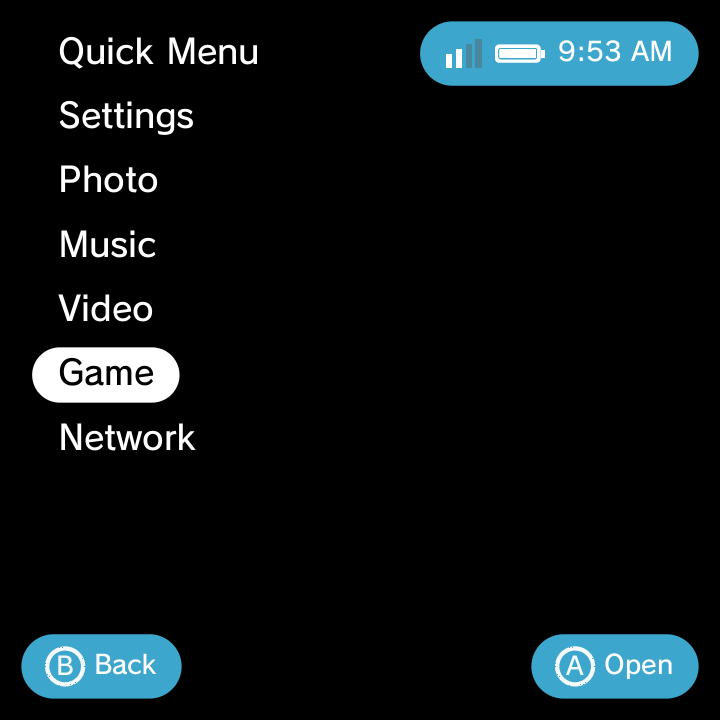
Minimal list style
All four themes launch the same games, play the same media, and share the same deep Settings. They just wear it differently.
GammaOS XMB (PlayStation 3 style)
This is the default look. A horizontal category bar runs across the screen, and the item list for the active category drops down vertically from it. Behind everything flows the continuous PS3 "wave" background, with glass icons and firmware-style animations. It adapts to any screen size or orientation automatically. You can see the wave and the sliding category rail in the clip above.
XMB has a few looks that are all its own, under Settings > Theme Settings:
| Option | Choices | Default |
|---|---|---|
| XMB Wave | On / Off | On (turns off automatically when you set a custom wallpaper) |
| Background | Original / Classic / Wallpaper | Original |
| Font | Original / Rounded / Pop | Original |
| Day/Night | Auto (by time of day) / Day / Morning / Dusk / Evening / Night | Night |
Day/Night changes the lighting mood of the whole home. Leave it on Auto and it follows the time of day for you.
Half Resolution for smoother XMB
On devices with a weaker GPU, two XMB-only rows in Theme Settings, Half Resolution: Wave and Half Resolution: Clock, draw just the wave or just the clock at half size and scale it up. The menu text and icons stay sharp while the frame rate holds. See Half Resolution: Wave / Clock.
Confirmations in the clock bar
When you change a setting, sort a list or pin an item, XMB now confirms it with a small "Setting changed" style toast drawn as frosted glass inside the clock bar, instead of a banner across the middle of the screen (pictured in Setting confirmations).
XMB on portrait and small panels
On small portrait panels XMB scales itself up so icons and text stay readable, and the User Guide uses the full screen width.
On portrait panels the XMB option side panel marquee-scrolls the focused row instead of truncating a long label, so you can always read the whole option name.
DSi Menu (Nintendo DSi style)
A carousel of glossy tiles glides across a light field with a soft scanline background. Tiles spring into place as the menu opens, and you can fling or scrub the carousel with a touch panel, snapping neatly to each slot.
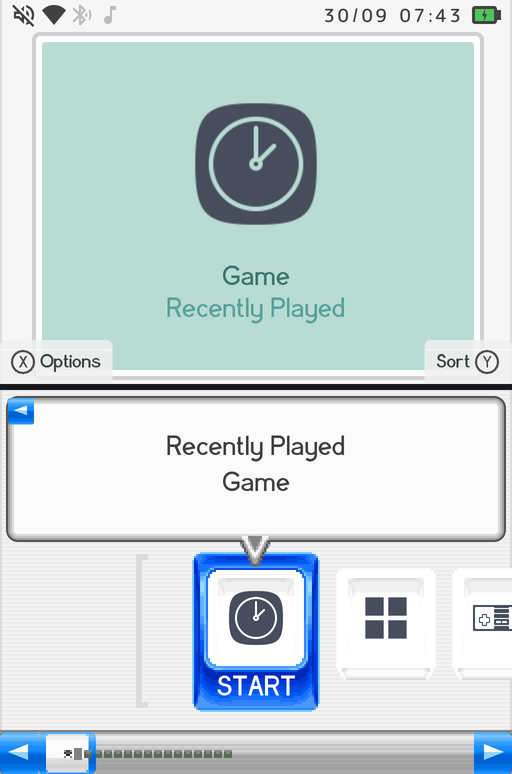
Drill into a category (like Game) and you get a familiar list with boxart, the same as the other themes.
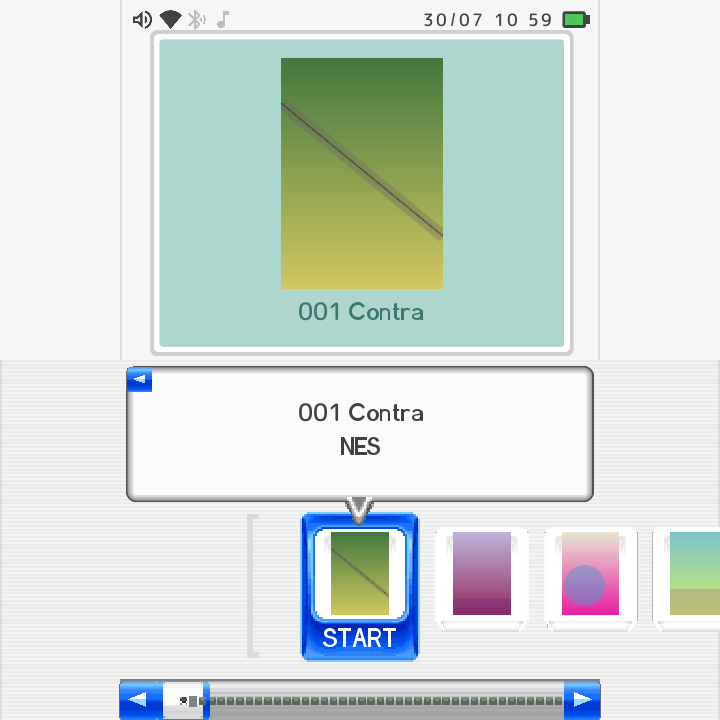
On single-panel devices DSi also offers a Single-Screen / Stacked layout choice. You can keep the carousel-only view (the default), or switch to a stacked layout with the status bar on top. Dual-screen devices always use both physical panels, so this choice is for single-panel handhelds.
DSi Dark Theme
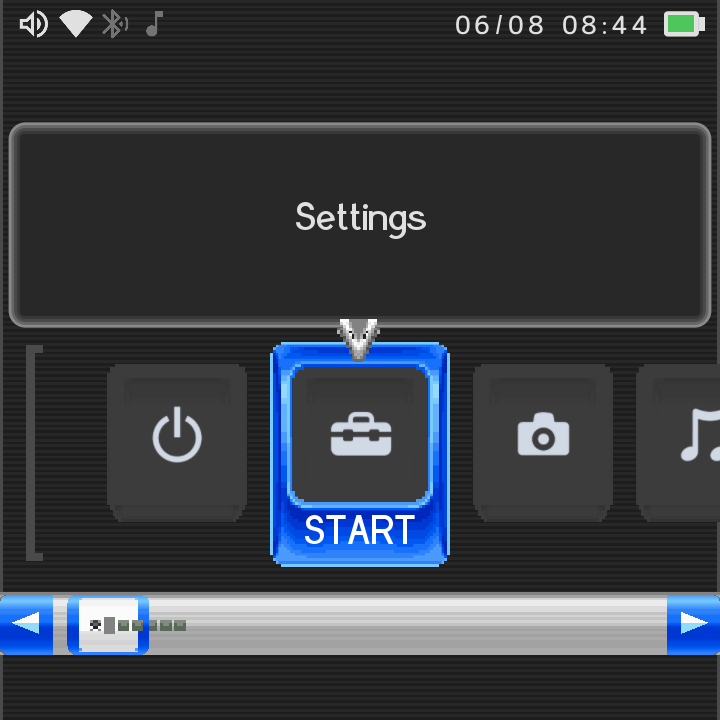
The DSi theme has a dark variant. With the DSi theme active, turn on DSi Dark Theme in Theme Settings and the whole DSi look flips live: the carousel, top screen, information page, dialogs, status bar and tile cards all switch to light text and icons on a dark field. It is a shared palette, so everything recolours together in one step, no restart needed.
DSi accent colour
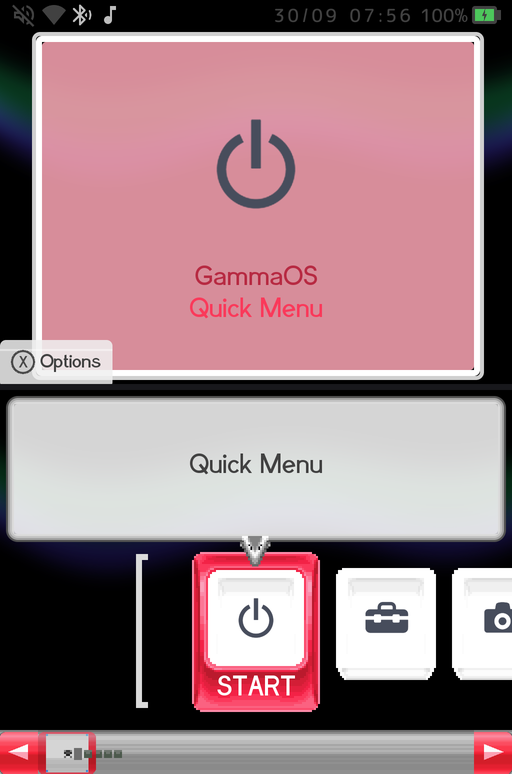
The DSi theme follows the Colour accent setting like the other themes. Your accent recolours the glossy list buttons, the scrollbar, the carousel selection frame, the back button, the scroll arrows and the dialog borders, so the DSi chrome matches whichever accent you picked.
The top screen follows your colour too. Any accent other than Original recolours the top-screen canvas, its text and the selection frame in the true hue you picked, including a Custom colour.
Each DS game's own icon and title
DS games show the icon and name stored in the cartridge, just like on a real DSi. A DS ROM without a scraped name shows the title read from the ROM (for example "Pokemon White Version 2" rather than the file name), and a DS game without box art shows its own cartridge icon on the carousel tile.
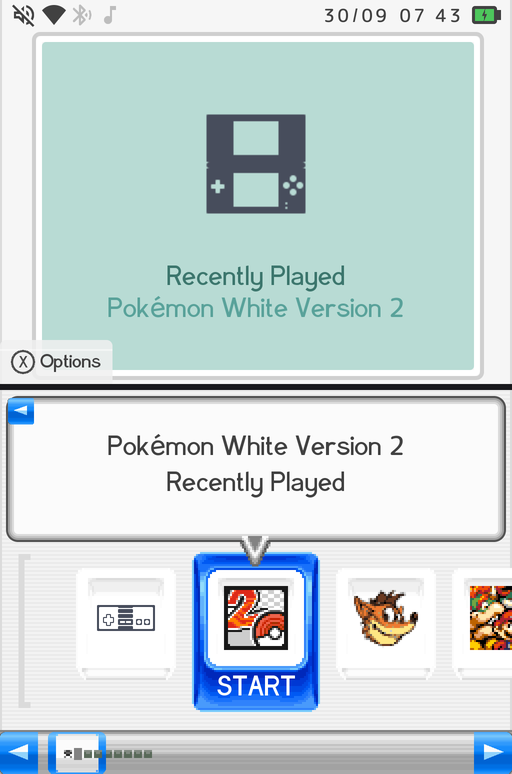
Two DSi rows in Theme Settings control this:
- Titles From ROM (on by default): use the title stored in the cartridge for DS games that have no scraped name.
- DS Icons On Tiles (off by default): keep each DS game's own cartridge icon on the carousel tile even when scraped box art exists. The box art still shows on the top screen.
Background Effect on both screens
The animated background effects from XMB come to the DSi home. Pick one on the DSi Wallpaper row in Theme Settings (Snow, Rain, Confetti, Fireflies, Starfield, Aurora, XMB Wave and many more) and it plays behind a see-through canvas, name balloon and scroll rail on both screens. The DSi keeps its own choice, separate from the one XMB uses. See DSi Background Effect for the full list.
Button legends on the top screen
The DSi top screen shows which buttons do what, DSi style, in its corners: X Options at the bottom left, and Y Sort, Pin, Unpin or Info at the bottom right, depending on what is highlighted. They appear automatically (there is no setting) and match the light or dark DSi look.
Launch effect plays to the end
When you start a game, the DSi launch effect (the tile lifts, a sparkle ring spins and the screen washes to white) now plays all the way through at 60 fps before the game appears. When you come back, the carousel is on the game you launched.
Faster, tidier DSi
- 60 fps, even in power saver. The DSi home draws far less per frame, so it holds 60 fps even in power saver mode, and it stops redrawing completely when nothing on screen moves.
- Settings pages as lists. Game Settings and Theme Settings show as proper lists in the DSi theme, and the scroll bar lands exactly on the last card.
- Battery percent. Turn on Show Battery Percent in Theme Settings to see the charge as a number beside the battery in the DSi status bar (Minima shows it in its status pill).
Minima (NextUI style)
A clean, minimal vertical text list on a black canvas. The selected row is a bright white rounded capsule with inverted text, and there is a small accent status pill plus a bottom button-hint bar so you always know your controls. Scrolling is a smooth exponential glide. The main list keeps things text-only with no icons.
Even in this stripped-back theme, your games still show their boxart once you drill into a system.
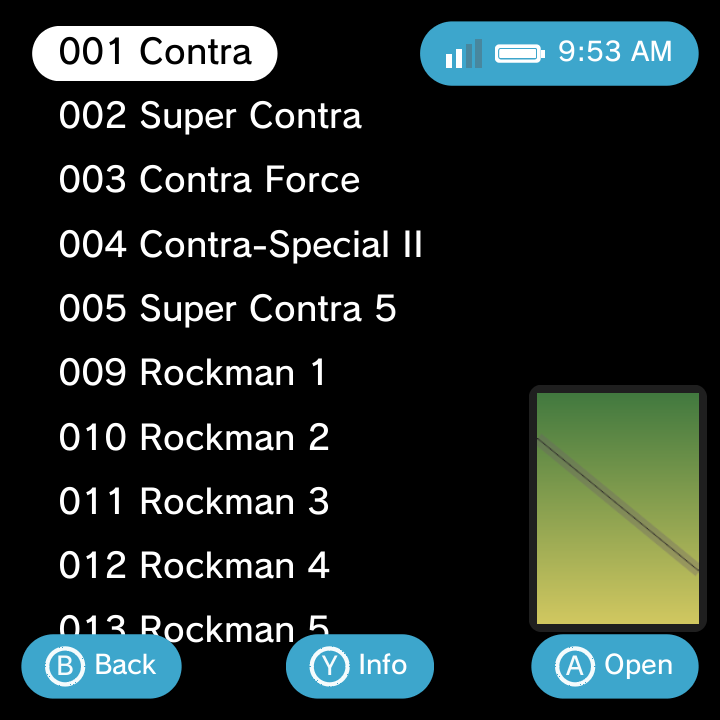
Minima adds two of its own options: a Background Colour (a solid colour instead of black, though a photo or video wallpaper overrides it), and an opt-in for the XMB wave (off by default in Minima, since the flat look is the point). The wave choice persists across restarts, so once you turn it on it stays on.
Minima details
- Long names scroll by default. A long game or app name keeps its normal size and scrolls across the focused row instead of shrinking to fit. If you prefer the old behaviour, pick Shrink to Fit in Theme Settings.
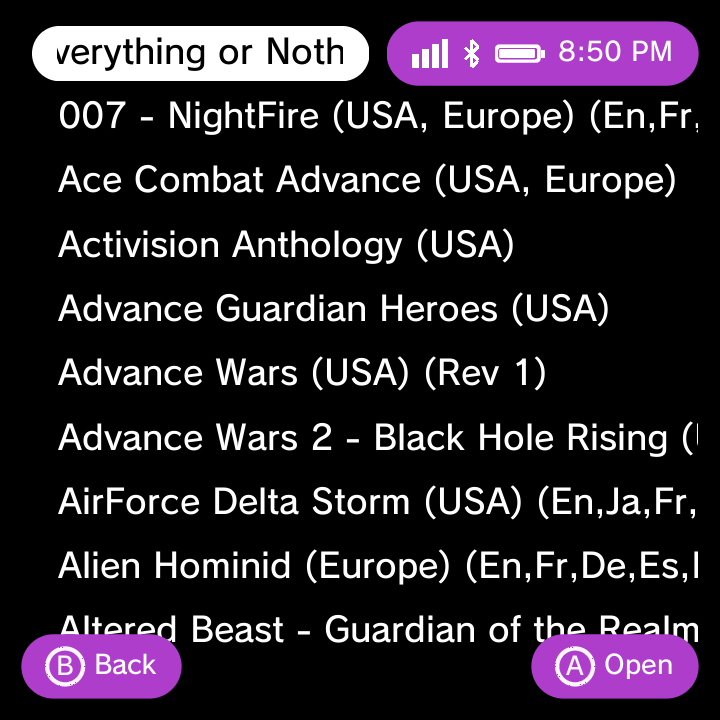
- Portrait scaling. On portrait panels Minima scales by the short edge, so text and item density track the narrow dimension and stay readable.
- Button-legend circles at large fonts. The A/B/Y glyph badges in the hint bar size correctly at large font settings, with the letters fitting neatly inside their rings.
Custom / ES-DE (EmulationStation-DE themes)
The fourth theme renders real EmulationStation-DE theme sets inside Nano, with their variants, colour schemes, aspect ratios and per-game art. The Slate theme is preinstalled, a built-in Theme Downloader installs more from the official ES-DE themes list, and you can copy theme folders onto the device yourself. Games still launch through Nano with your usual emulators.
Everything about it (the Start menu, downloading and adding themes, and how to get back to Nano's own settings) is on its own page: ES-DE Themes.
Charging indicator
In the DSi, XMB and Minima status bars, the battery icon shows a lightning bolt while the device is charging, on top of the colour change it already had, so you can tell at a glance that the charger is connected.
Switching themes
Changing your whole home is one setting away.
- Open Settings > Theme Settings.
- Choose Home Theme.
- Pick GammaOS XMB, DSi Menu, Minima or Custom / ES-DE.
The new theme applies straight away. From the ES-DE theme, the Home Theme row is reached through Start > NANO SETTINGS > Full Settings > Theme Settings (see ES-DE Themes).
The same menus simply look different in each theme. A Settings screen in Minima (see min_settings.png) and an Options menu in DSi (see dsi_optmenu.png) show the exact same choices as their XMB counterparts, just dressed to match the theme you chose.
Accent Colour (XMB, DSi and Minima)
Under Settings > Theme Settings > Colour you get 21 preset accents plus a Custom... colour of your own, applied to whichever of the three Nano themes you are using (ES-DE themes bring their own colour schemes instead):
Original (each theme's signature colour: XMB uses a per-month hue, Minima a berry tone, DSi its azure), plus Yellow, Green, Pink, Dark Green, Light Purple, Teal, Dark Blue, Magenta, Orange, Brown, Red, Black, White, Gray, Blue, Cyan, Lime, Gold, Violet, and Crimson.
The accent shows up differently in each theme. On XMB it tints the wave and menu accents, on Minima it colours the capsule and hint bar, and on DSi it recolours the chrome and the top screen. One colour, three personalities.
Custom colour picker
Pick Custom... at the very end of the Colour list to open the full-screen Custom Colour picker and dial in any colour you like. The preview, the colour bar and the hex value update live as you move.
| Control | What it does |
|---|---|
| D-Pad / stick Left and Right | Change the hue |
| D-Pad / stick Up and Down | Change the brightness |
| L1 / R1 | Less or more saturation |
| A | Apply the colour |
| B | Cancel and keep your previous colour |
| Hold Select (about a second) | Exit the picker |
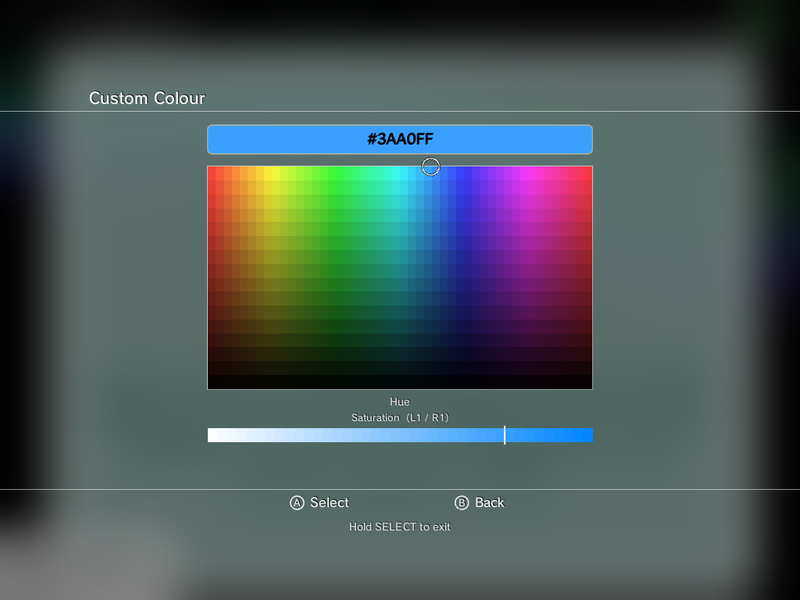
Once applied, the Colour row reads Custom, and the colour drives the accent in XMB, DSi and Minima live.
Wallpapers
You can replace the default background with your own picture or a looping video, all from Settings > Theme Settings.
| Option | What it does |
|---|---|
| Wallpaper Image | Pick a photo for the home background, using the photo grid picker |
| Bottom Wallpaper | A separate wallpaper for the bottom screen (dual-screen devices only) |
| Video Wallpaper | Pick a looping video for the top-screen background |
| Clear Wallpaper | Remove your custom wallpaper and restore the wave |
| Wallpaper Dimming | Darken a bright wallpaper so icons and text stay readable (default 25%) |
| XMB Wave | On / Off; turns off automatically when a wallpaper is set, then is honored exactly as you leave it |
Supported wallpaper image types: jpg, png, webp, bmp, gif, heic. Supported video types: mp4, mkv, webm, mov, 3gp, avi, ts, mpg.
If your wallpaper makes text hard to read, nudge Wallpaper Dimming up until icons and labels pop again.
Clocks follow your Time and Date Format
The DSi top-screen clock and the Minima status-pill clock both follow your Time Format (12 or 24 hour), and the DSi date follows your Date Format. Set these under Settings and every theme's clock matches.
Keep exploring
For what changed in 1.4.2 and 1.4.3, see What's New since 1.4 and the ES-DE Themes page.
For a tour of the newest additions, see What's New since 1.4.1; the earlier 1.4.1 changes are in What's New in 1.4.1.
See the full list of every option in the Settings reference, and check the GammaOS Toolbox for extra display and system tweaks that pair well with your chosen theme.