
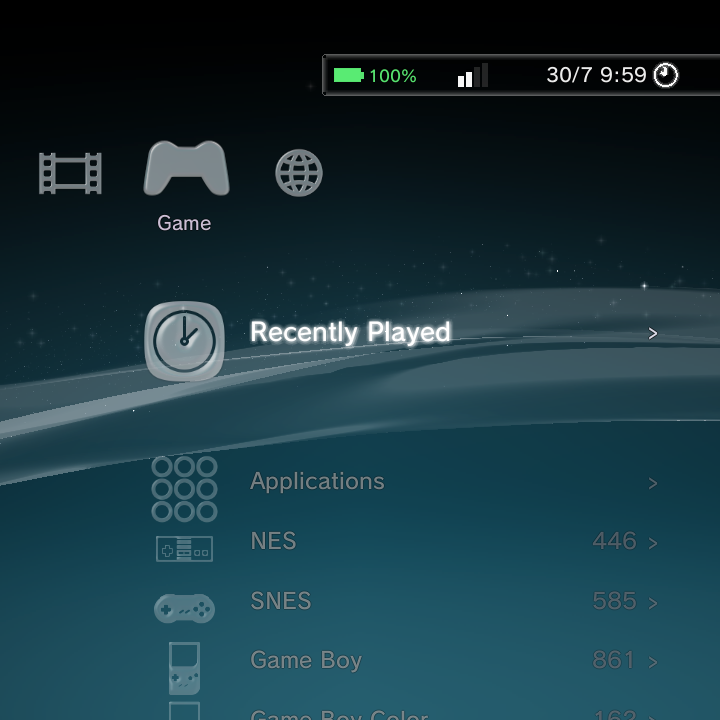
Every theme in GammaOS Nano moves the same way, so once you learn it in one home you know them all. Here is how to get around quickly with your controller (and with touch, if your handheld has a touch panel).
The core controls
Four buttons do almost everything on the home:
| Button | What it does |
|---|---|
| D-Pad | Move around. Up/Down move through a list, Left/Right move across XMB categories |
| A | Confirm or launch the highlighted item (also opens a submenu) |
| B | Back one level, exit a submenu, or close a dialog |
| Options | The Options button (Triangle glyph) opens the context menu for whatever is highlighted |
The Options button is the same physical button as X on the pad. You can also open the Options menu with Tab on a keyboard or a middle-click with a mouse.
A couple of extra buttons come in handy on the home:
- Y cycles Sort By in game and media lists (in Music it cycles the visualizer, in Photo it swaps 2D/3D).
- Y on the Game category header cycles the system tile order: Default, A to Z, Most Games, By Manufacturer. This is a display order only and never reorders your actual collection.
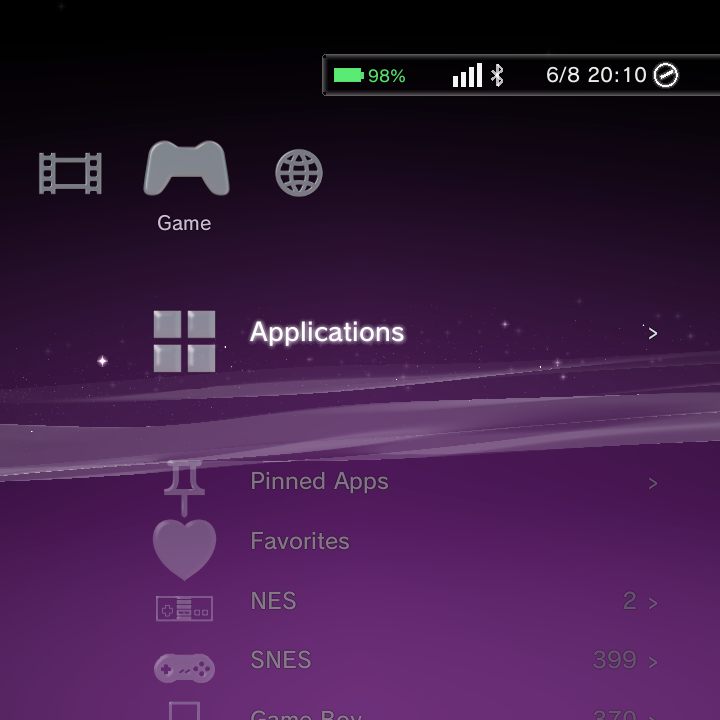
- Y on any app pins or unpins it to the home. Pinned apps gather in a Pinned Apps row under Game, kept across restarts.
- Select opens global Search from anywhere on the home.
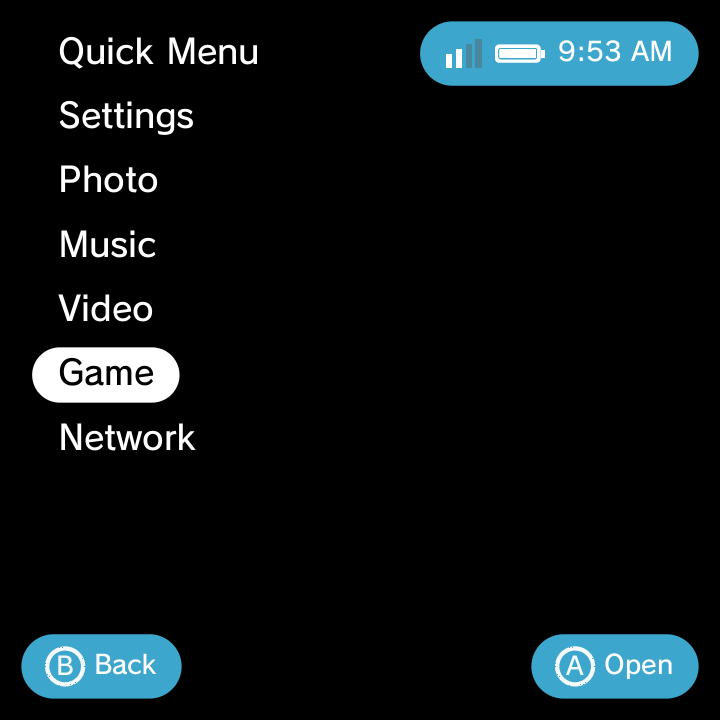
When you sort games, switch to a folder view, pin an item or change a setting, a short confirmation appears: a compact card in the corner on DSi and Minima, and a frosted-glass message inside the clock bar on XMB. See Setting confirmations.
Hold to scroll faster
Long libraries are no problem. Hold a D-Pad direction and the list starts to accelerate: it begins after a short delay, then speeds up the longer you hold, so a big collection flies by. Let go to stop on the item you want. This accelerating scroll now works in DSi and Minima game lists too, not just XMB.
The DSi carousel at the top level scrolls at a steady, gentle pace, and only kicks into the accelerating scroll once you drill into a list. Minima and DSi keep that same carousel cadence at the top level.
Faster list skipping with the shoulder buttons
The shoulder buttons give you big jumps through long lists:
- XMB: L1 jumps back a page (10 items) and R1 jumps forward a page in the list you are on. A page jump plays a single cursor sound instead of a burst.
- DSi and Minima: inside a game or media list, L1 and R1 jump by initial letter. In an alphabetical list, R1 goes to the first game of the next letter and L1 goes back to the start of the current letter (press again for the previous letter). Games starting with a number or symbol share one group at the top. In a list that is not alphabetical (a settings page, or Recently Played) they jump a page of 10 instead.
- L2 and R2 do the same jumps as L1 and R1, so use whichever pair is comfortable.
Combine them: jump to the right letter with the shoulder buttons, then hold the D-Pad to glide the last few rows.
L1 and R1 also reorder things in the editors that support it: a system in Settings > Game Settings > Game Systems (see Game Systems) and a category in Home Categories (see Wallpapers & Theme Settings).
On single-screen DSi, Game Information pages across L1 / R1 instead of overlapping, so a long synopsis turns one clean page at a time.
Lists wrap around
You never hit a dead end. Press Up on the first item and you wrap to the last item, and press Down on the last item to wrap back to the first. This wrap-around now applies in DSi and Minima lists as well, so the last item loops straight back to the first. The analog stick and HAT behave exactly like the D-Pad, so use whichever feels natural.
Spotting Favourites and Pinned Apps
Two home rows have their own icons so they are easy to recognise. The Favourites row uses a heart (drawn in glass on XMB, a flat theme-tinted glyph elsewhere), and the Pinned Apps row uses a push-pin, distinct from the Applications grid icon.
Touch, mouse and keyboard
If your handheld has a touch panel, tap a row to select and activate it, drag to scroll a list, and fling the DSi carousel (it snaps to the nearest slot). You can also drag slider tracks, tap Yes/No/OK in dialogs, and tap the dimmed area around a dialog to cancel.
USB mice and keyboards work too. For the full mapping, see Mouse and Keyboard.
Typing with the on-screen keyboard
Whenever Nano needs text (a search, a Wi-Fi password, a system name, a Syncthing folder label or device ID), the on-screen keyboard opens. The guidance for the field, such as "Folder label", sits on its own line above the text you are typing, so a long prompt never crowds your entry (pictured on the Syncthing page).
On the keyboard, L1 toggles Shift, R1 switches between letters and symbols, Y pastes from the clipboard and Start submits. The full list is in OS Controls.
Learn more
For the complete button chart and the system-wide shortcuts (like brightness and the Power menu), see OS Controls. To master the Options button, head to Context Menus.