Everything you can tweak in GammaOS Nano lives in one place: the Settings category. This page walks the whole tree top to bottom, so you always know where a given option lives and what it does.
You can open Settings two ways:
- From the home screen, move to the Settings category and open the row you want.
- From anywhere, hold Power to bring up the Quick Menu, then choose System Settings.
The Settings screen adapts to whichever home theme you are using. It looks like a PlayStation-style list on XMB and a clean text list on Minima, but the rows and options are the same.
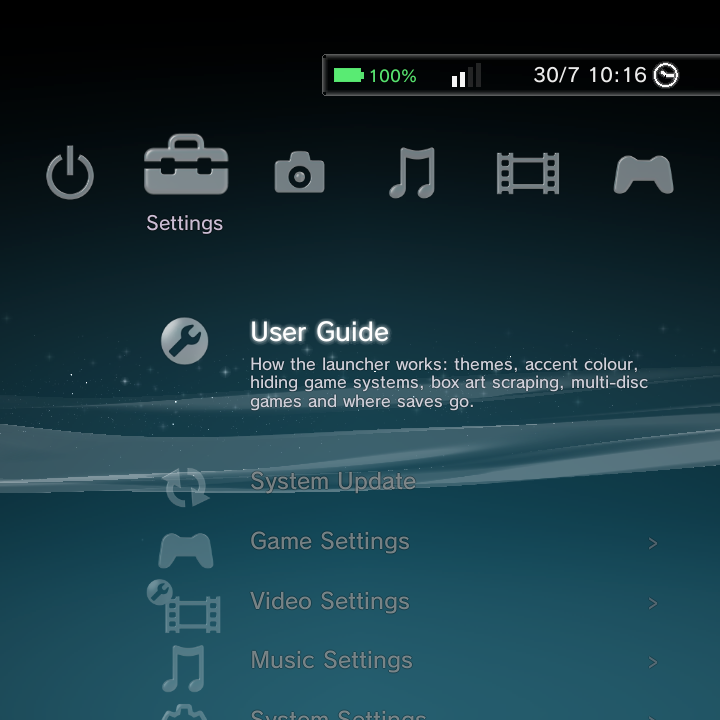
Settings category
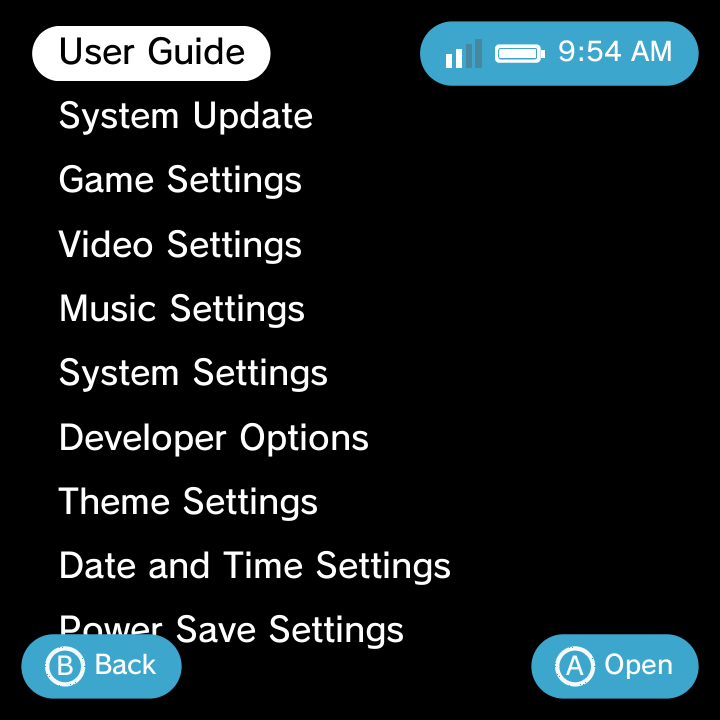
same Settings, minimal look
Want the fastest way to change screen brightness? You do not need Settings at all. Just hold Select and press Vol + or Vol - from anywhere.
Top of the tree
| Row | What it does |
|---|---|
| User Guide | A built-in how-to for the launcher. |
| System Update | Update the GammaOS system software over the internet or from a package on your storage (see System Update below). |
Game Settings
Controls your game library. See Adding Games, Game Systems, and Boxart for full walkthroughs.
| Option | What it does |
|---|---|
| Game Systems | Enable, disable, reorder, and edit every game system. |
| Quick Resume | Off (default) or On. When on, the device boots straight back into the RetroArch or DraStic game you were playing; when off, every boot starts at the home. Also in the Quick Menu. See Quick Resume. |
| Rescan Games | Re-scan your ROM folders after adding or removing files. |
| DraStic Data Folder | Where DraStic Nano keeps your saves, save states, shaders and overrides. Shows Default (Internal storage/drastic-nano) until you pick a folder; Use Default Folder goes back. See DraStic Nano. |
| DraStic Cheats Folder | Where DraStic Nano looks for your own R4-style usrcheat.dat cheat files, merged with the built-in cheats when a DS game starts. Shows Default (drastic-nano/cheats) until you pick a folder. |
| Boxart Scraper | Download cover art and metadata (see below). |
Game Systems editor
Opening Game Systems lists every system with an On/Off toggle. Press X to switch the focused system on or off, and reorder systems with L1 and R1. Your manual order is what the home shows (it also resets the Game category's sort to Default; press Y on the Game category to cycle Default, A - Z, Most Games and By Manufacturer). Open a system to edit these fields:
- Enabled
- Display Name and Short Name
- Launch Type (Libretro Core or Custom Package)
- Emulator (a searchable core or app picker)
- Core .so, Package, Intent Template, Launch Args
- Extensions (comma-separated file types this system accepts)
- Scan Folders (a folder picker, or the default
ROMs/<id>/) - Icon (a grid of icons; press X in the grid to import your own PNG or JPG from the file browser, and the row then reads Custom) and Icon Tint (21 swatches or a custom RGB colour)
- A per-system Scraper with optional username and password, plus Scrape This System
- Clear Boxart, which asks Cancel / Clear Boxart and then deletes that system's downloaded covers and background art (handy before a fresh scrape)
- Reset-to-Default for built-in systems, or Delete for custom ones
To add a system that is not in the list, use Add New System... at the bottom. Full steps are on the Custom System page.
Boxart Scraper
| Option | Default | What it does |
|---|---|---|
| Scraper service | ScreenScraper | Choose ScreenScraper or TheGamesDB. |
| Replace Icons with Boxart | On | Show downloaded covers instead of system icons. |
| Hover Background Art | On | Show fanart behind the highlighted game. |
| Scrape Region | - | Preferred region for the art. |
| Overwrite Existing | Off | Re-scrape games that already have art. |
| ScreenScraper account | blank | Optional username and password (built-in credentials are used if blank). |
| TheGamesDB API key | - | Your own key for TheGamesDB. |
| Scrape All Systems | - | Kick off a full-library scrape. |
| Boxart Folder | Default | Where scraped covers and background art are stored. Pick Use Default Folder, or a folder on Internal storage, the SD card or removable storage. Existing art is moved to the new folder, and art on an SD card follows the card at boot and when you insert it. |
Art is cached on the device and a background thread keeps scraping while you are idle. See Boxart for the full guide.
Video and Music Settings
These two rows control the streaming browsers in the media players.
Video Settings
| Option | Default | What it does |
|---|---|---|
| IPTV Channels | On | Show the live-channel (IPTV) browser in Video. |
| IPTV Playlist URL | - | Point IPTV at your own playlist. |
Music Settings
| Option | Default | What it does |
|---|---|---|
| Internet Radio | On | Show the Internet Radio browser in Music. |
| Radio Playlist URL | - | Point Internet Radio at your own playlist. |
System Settings
| Option | What it does |
|---|---|
| System Name | Set the name shown for this device. |
| System Language | Pick your language, with a live preview across many languages. |
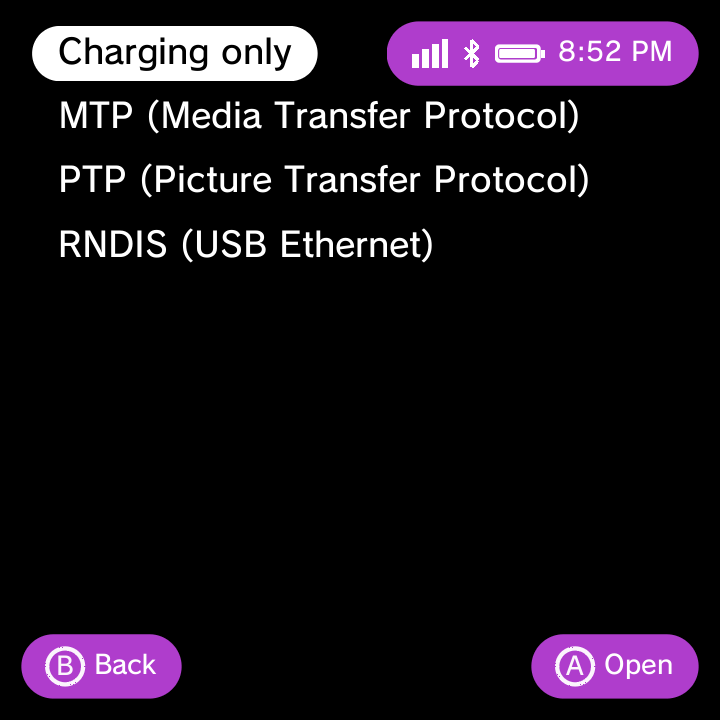
| USB & Docking | Set the USB connection to File Transfer (MTP) or Charge Only, so you can move files to a PC without ADB. The switch really changes the mode now. |
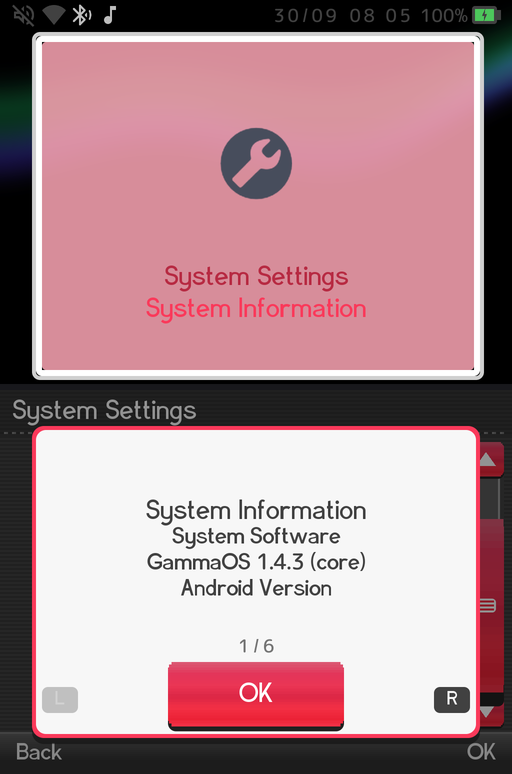
| System Information | A read-only page: System Software (GammaOS version and edition), Android Version, Model, Security Patch Level, Build Date, Serial Number, MAC Address, IP Address and System Storage. It scrolls in XMB and is split into pages in DSi and Minima. |
Apps that declare storage and microphone permissions are granted automatically (you can still revoke them later in the full Settings app), and permission dialogs are controller-navigable, with the confirm button focused and activated by your controller.
Developer Options
For power users and debugging. Leave these off unless you know you need them.
| Option | What it does |
|---|---|
| USB Debugging | Enable adb over USB. |
| Stay Awake While Charging | Keep the screen on while plugged in. |
| Show Touches | Draw a dot where you touch the screen. |
| Pointer Location | Overlay touch coordinates and tracks. |
| Transition / Window / Animator scales | Speed up or slow down system animations. |
Theme Settings
The heart of the launcher's look. See the Themes page for the full tour.
| Option | What it does |
|---|---|
| Home Theme | Switch between GammaOS XMB, DSi Menu, Minima and Custom / ES-DE (the ES-DE theme engine). Applies live. See Home Themes. |
| Startup Menu | Which place the home opens on at boot: Default, any top-level category, or any game system that has games. All themes. |
| Colour | Accent colour for the XMB wave, the Minima accent and the DSi chrome: 21 presets including each theme's Original, plus Custom... at the end, which opens a colour picker (left/right = hue, up/down = brightness, L1/R1 = saturation, A = apply, B = cancel). The row then reads Custom. |
| Background | XMB background style (Original / Classic / Wallpaper). |
| Wallpaper and Wallpaper Image | Pick a photo for the home background. In the DSi theme, Wallpaper is the Background Effect list (None, Snow, Rain, Confetti, Sparks, Fireflies, Bubbles, Starfield, Embers, Leaves, Plasma, Fire, Aurora, Ripple, Checkerboard, Spiral, XMB, XMB Wave), kept separate from the XMB choice. |
| Bottom Wallpaper | A separate wallpaper for the bottom screen (dual-screen devices). |
| Video Wallpaper | A looping video for the top-screen background. |
| Clear Wallpaper | Remove a custom wallpaper and restore the wave. |
| Background Colour | A solid colour for the Minima background. |
| Wallpaper Dimming | Darken a bright wallpaper so text stays readable (0 to 70%, default 25%). |
| XMB Wave | Turn the PS3 wave on or off (auto-off when a wallpaper is set). Also available as an opt-in in Minima. |
| Half Resolution: Wave (XMB) | Renders the wave at half size and scales it up, so weaker GPUs keep a full frame rate. Menu text stays sharp. Off by default. |
| Half Resolution: Clock (XMB) | The same for the clock graphics. Off by default. |
| Font | XMB font style (Original / Rounded / Pop). |
| Font Size | Scale the launcher's text live in every theme (XMB, DSi and Minima); word-wrapped text reflows as you change it. |
| Day/Night | XMB lighting (Auto / Day / Morning / Dusk / Evening / Night; default Night). |
| Boot Sound | Play the boot chime (default On, all themes, takes effect at the next boot). |
| Navigation Sounds | The launcher's menu sound effects. |
| Menu Music (DSi) | The DSi menu background music (default On). |
| Show Battery Percent (DSi, Minima) | Show the charge as a number next to the battery icon (default Off). |
| Titles From ROM (DSi) | DS games without a scraped name show the title stored in the cartridge (default On). |
| DS Icons On Tiles (DSi) | Keep each DS game's own cartridge icon on the carousel tile even when box art has been scraped; the box art still shows on the top screen (default Off). |
| Dark Theme (DSi) | While the DSi theme is active, flip the whole DSi look (carousel, top screen, info page, dialogs, status bar and tile cards) to light text and icons on a dark field, live. |
| Dual Screen (DSi) | On dual-screen devices, choose Auto, Top+Bottom, or Carousel-Only. |
| Screen Gap (DSi) | Tune the spacing between the stacked screens on portrait dual-screen panels. |
| Bottom Clock | Turn the bottom-screen clock on or off (dual-screen devices). |
| Bottom Clock FPS | 30 or 60 frames per second for the clock. |
| Home Categories | Reorder or hide the home categories (see below). |
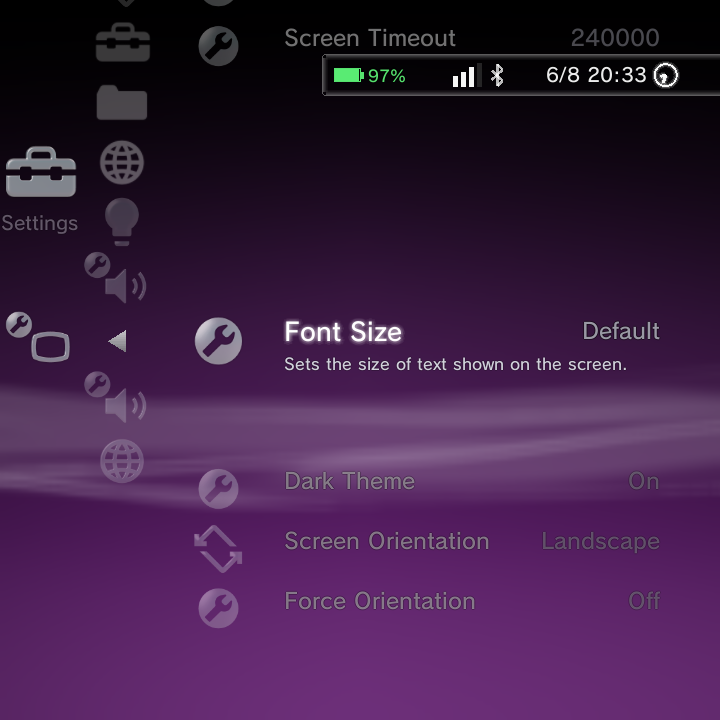
Rows that belong to a theme you are not using are hidden, so Theme Settings only shows what applies to your active theme. See the Themes page for the full look-and-feel tour.
Home Categories editor
Home Categories opens an editor for the top-level home columns. Hide columns you never use and reorder them with L1 and R1, and drill into a category to hide individual rows too. Quick Menu stays first, Settings cannot be hidden, and at least one category must stay visible. Changes apply live and persist.
Date and Time Settings
| Option | What it does |
|---|---|
| Set via Internet (NTP) | Sync the clock over the network. |
| Set Manually | Type in the date and time yourself. |
| Date Format | Choose how dates are shown. |
| Time Format | 12-hour or 24-hour clock. |
| Time Zone | Pick your zone. |
| Daylight Saving | Toggle daylight saving. |
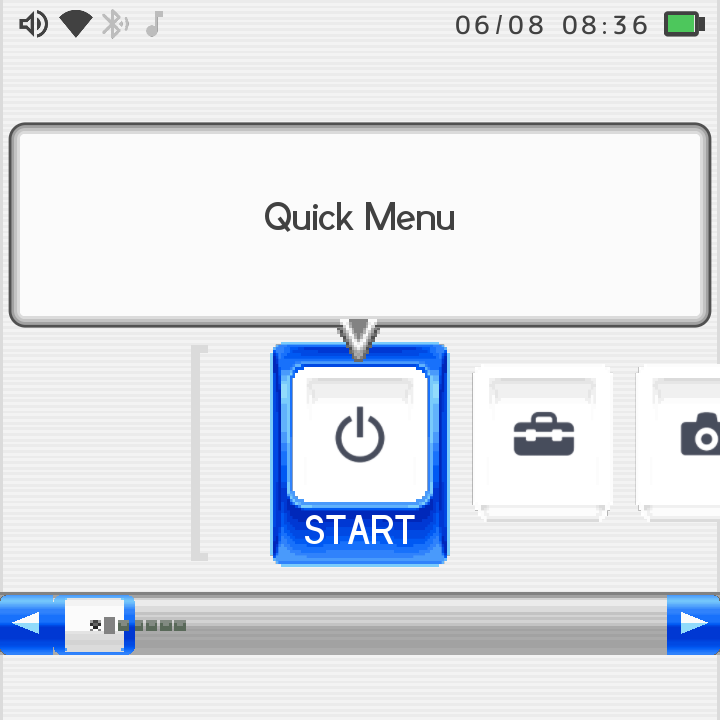
The DSi top-screen clock and the Minima status-pill clock follow your Time Format (12-hour or 24-hour), and the DSi date follows your Date Format.
Power Save Settings
| Option | What it does |
|---|---|
| Battery Saver | Reduce performance and background activity to stretch battery life. |
Accessory Settings
| Option | What it does |
|---|---|
| Manage Bluetooth Devices | Pair and manage Bluetooth controllers, headsets, and other accessories. |
Gamepad Settings
Tune how your controller behaves across the whole system. For the full breakdown, including button remapping, calibration, and Mouse Mode, see Gamepad & Remapping. For the button map in the menu, see OS Controls.
| Option | What it does |
|---|---|
| Controller Enable | Turn controller input on or off. |
| Merge Controllers | Combine multiple pads into one virtual controller. |
| Hide Source Device | Hide the raw input device from apps. |
| ABXY Swap | Swap the face-button layout. |
| Invert Left / Right Stick | Flip axis direction per stick. |
| Analog-to-D-Pad | Let the analog stick act as a D-Pad. |
| D-Pad-to-Analog | Let the D-Pad act as an analog stick. |
| Global Sensitivity | Overall stick sensitivity. |
| PWM (rumble) Enable + Intensity | Turn rumble on and set its strength. |
| D-Pad Threshold | How far the stick must move to register as a D-Pad press. |
| Screen Map | Map a stick to on-screen touch coordinates. |
| Mouse Mode | Stick or D-Pad pointer speed, boost, and scroll (see Mouse and Keyboard). |
Slide Behaviour
For devices with a slide, swivel, or hall (lid) switch. Configure what happens when you open or close, including the PSP-style clock. See the full page: Slide & Rotate Clock.
| Option | What it does |
|---|---|
| Enable | Turn slide handling on. |
| Device / Button Code / Event Type / Active Value | Tell the system which hardware switch to watch. |
| On Slide Down / On Slide Up | What happens when you slide the screen down or back up: Rotate, Restore Natural, Sleep, Wake, Launch App, Close App (force-stops the launched app) and PSP Clock. Tick more than one, then OK. |
| Sleep Delay | How long before sleeping after a slide. |
| Rotation Angle | Angle to rotate the screen on a slide. |
| Slide Launch Target | The app to open with the Launch App action: pick an app, then an activity ("Default activity" first). Shows Not Set until chosen. |
| Show Clock On Slide | Show the PSP-style clock when you slide. |
| Freeze App Under Clock | Pause the game while the slide clock is up (default Off). |
| Clock Live Backdrop | Let the game or home show through behind the clock glass. |
| Parallax | The tilt parallax effect on the clock (default On). |
| Parallax Strength | Subtle, Normal (default), Strong, Extra Strong or Maximum. |
| Parallax Direction | Peek Behind (default), Follow Tilt, Invert X Only or Invert Y Only. |
Display Settings
| Option | What it does |
|---|---|
| Brightness | Screen brightness (or use Select + Vol + / Vol - anywhere). |
| LiveDisplay | Night Light and temperature, colour calibration, saturation, and reading mode. |
| Screen Saver | Configure the screen saver. |
| Screen Timeout | 15 seconds up to Never. |
| Font Size | Make system text larger or smaller. |
| Dark Theme | System dark mode. |
| Screen Orientation / Force Orientation | Set or lock the screen orientation. |
When you boot into normal Android (desktop/TV) mode instead of Nano, screen orientation gets its own dedicated screen and the custom TvGammaShade notification shade becomes available. Those desktop-mode features are covered on the Full-Android desktop features page.
Sound Settings
| Option | What it does |
|---|---|
| Touch Sounds | Play a sound on touch. |
| Charging Sounds | Play a sound when charging starts. |
| Screen Lock Sounds | Play a sound on lock and unlock. |
| Navigation Sounds | Turn the launcher's UI navigation sounds on or off (the boot jingle still plays). |
Network Settings
Your connections live here. See Network and Network Shares for the full guides.
| Option | What it does |
|---|---|
| Connection status list | See your SSID, IP address, and signal. |
| Internet Connection | Turn networking on or off. |
| Internet Connection Settings | The Wi-Fi and Bluetooth setup wizard (pick an SSID, enter a WPA2 password, pair devices). |
| Internet Connection Test | Check that you are really online. |
The top bar (HUD) shows your Wi-Fi signal and Bluetooth status at a glance.
Tools and extras (their own rows)
These rows open dedicated tools rather than a simple list of toggles.
| Row | What it is |
|---|---|
| GammaOS Toolbox | Power-user tweaks: performance, display, audio, swap, the RetroArch Back Button, and more. On dual-screen devices it also holds Control Centre Double Tap (two taps to wake the sleeping bottom screen) and Control Centre Timeout (15 seconds to 10 minutes or Never, default 30 seconds) for the Control Center. |
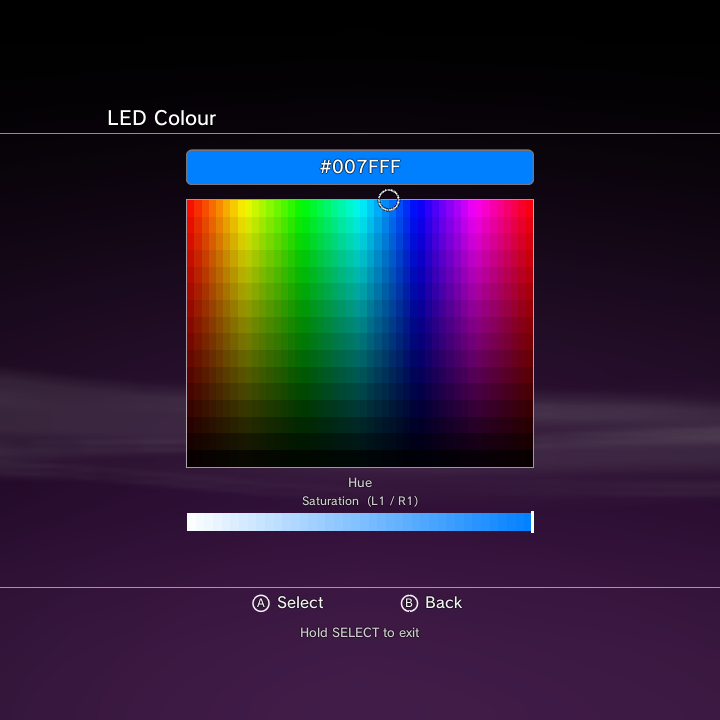
| GammaRGB | RGB LED lighting: effect (Off / Follow Screen / Solid / Effect 1-5), colour, brightness, scale-with-brightness, speed, saturation, fade, split zones with per-zone colours. Effect > Off now truly powers the LEDs off, solid colours display vividly at full brightness, and there is a full-screen d-pad HSV colour picker with a live hex readout. |
| GammaEQ | Speaker EQ and enhancements: master enable, speaker-only, preview, preamp and postgain, Crystalizer, Bass Limiter, Mid Protector, Stereo Widener, and two parametric EQ bands. |
| File Explorer | Browse and manage the files on your device. |
| Network Shares | Connect SMB, NFS, WebDAV, and FTP shares. The last row, Syncthing, turns on the built-in Syncthing service and holds its Status, This Device, Folders, Devices, Pending Requests, Options, Web Interface, Restart Syncthing and Logs rows. |
If you see a Storage row, its status text only reports how much space is used or free; it is not where you manage files. To browse, move, delete, or format storage, open Applications > Files (the standard file manager, fully controller-navigable) or the File Explorer row above.
Quick Menu
The Quick Menu gives you fast access to brightness, performance, shaders, USB mode, and power, from the home or right over a running game. It has its own page: Quick Menu.
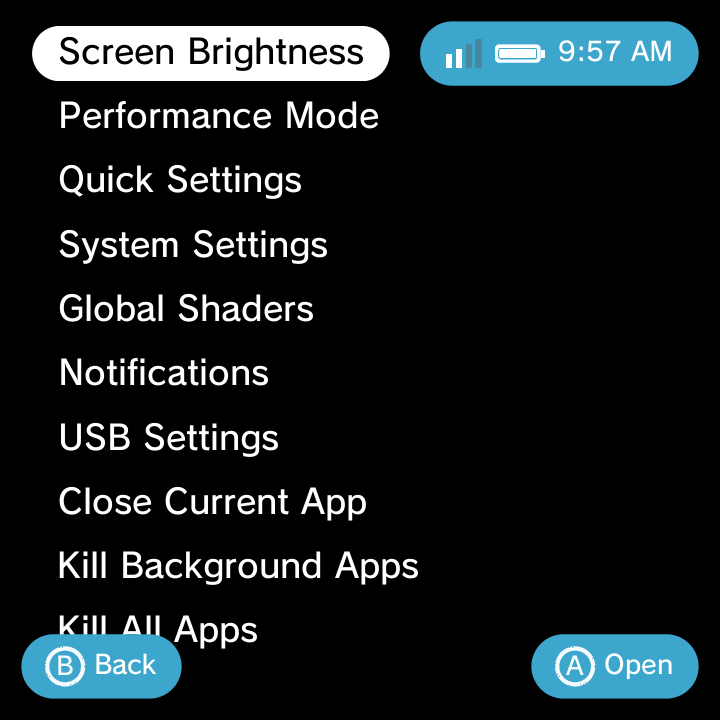
In short, it includes:
- Screen Brightness slider
- Performance Mode
- Quick Settings tiles
- System Settings (jump into the full Settings app)
- Global Shaders
- Notifications
- USB Settings (Charging only / MTP / PTP / RNDIS)
- Close / Kill Apps
- Quick Resume (On/Off)
- A Power submenu (Restart / Power Off / Recovery / Safe Mode / Boot Android)
If a screen shader ever makes the display unreadable, hold Power + Select together to disable the system display shader. This is the emergency escape hatch.
System Update
Settings > System Update offers two ways to update:
| Option | What it does |
|---|---|
| Update via Internet | Checks for the latest GammaOS system software, then downloads and installs it. The check only runs when you choose this. |
| Update via Storage Media | Looks for a GammaOS update .zip that you copied to the root of your storage and installs it. |
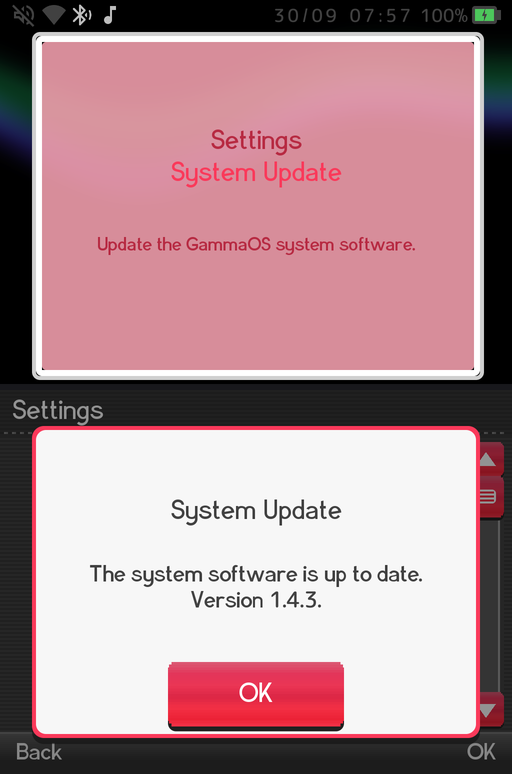
The result is always in plain words. When there is nothing newer you see "The system software is up to date" with your current version, and network, server or connection problems are explained with what to try next instead of an error code. Do not turn the power off while an update downloads or installs; the device restarts by itself when it is done.