
Getting online lets you scrape boxart, stream Internet Radio and IPTV, browse network servers, and download updates. GammaOS Nano keeps Wi-Fi and Bluetooth together in one friendly place.
You will find everything under Settings > Network Settings.
Check your connection
Network Settings opens with a connection status list showing your current SSID, IP address, and signal strength. This is the quickest way to confirm you are online and see which network you are on.
You can turn networking on or off here too, with the Internet Connection toggle.
Connect with the wizard
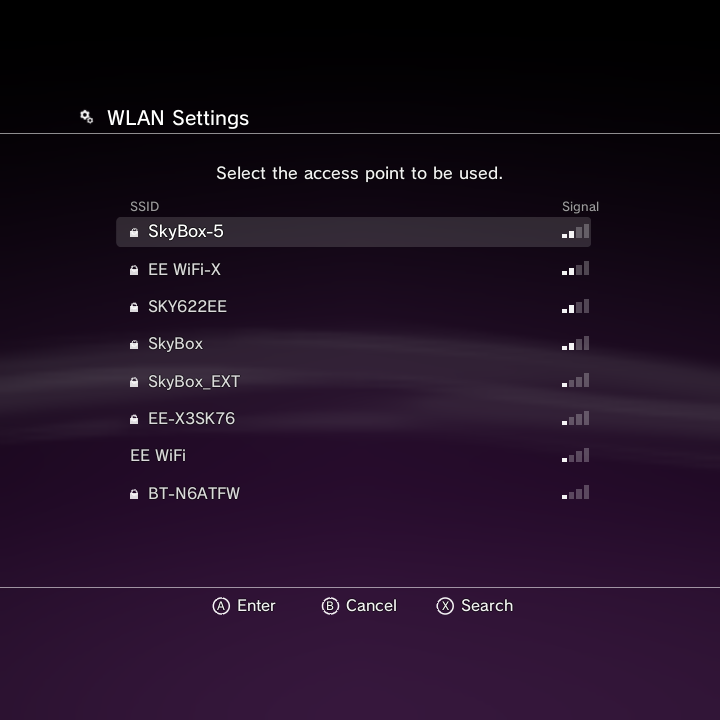
Choose Internet Connection Settings to open the Wi-Fi and Bluetooth setup wizard. It walks you through:
- Picking your Wi-Fi network (SSID) from the list of nearby networks.
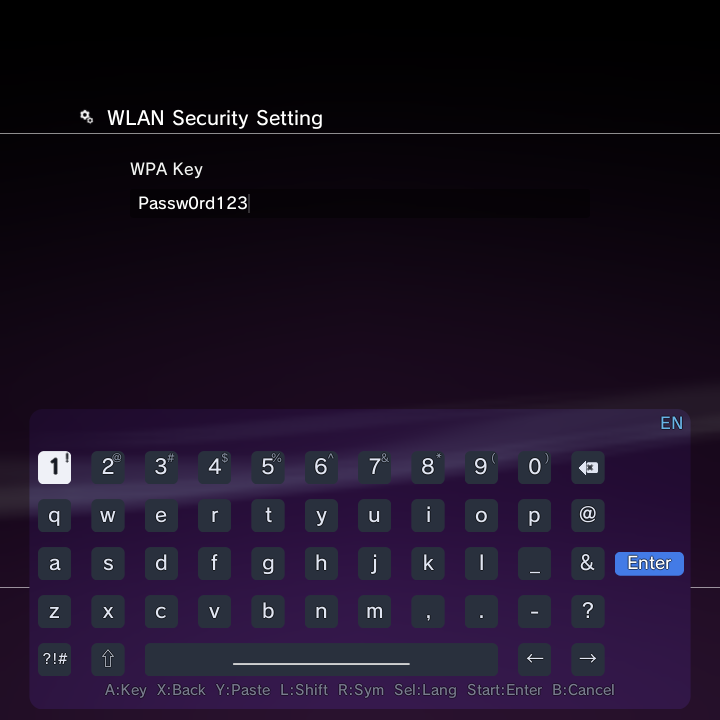
- Entering your WPA2 password.
- Pairing a Bluetooth device.
The Wi-Fi part is the same step you meet during first-time setup, so if you skipped Wi-Fi back then you can finish the job here. First-time setup no longer has a Bluetooth step: a fresh install starts with Bluetooth off, and you turn it on here, in Bluetooth & Accessories or from the Quick Menu when you want it. See Getting started for the first-boot walkthrough.
The wizard no longer blanks out after idle time and now renders in the Minima theme as well as XMB and DSi. As you type a Wi-Fi password it is shown in the clear so you can check it before you connect, and networks whose names contain spaces connect correctly.
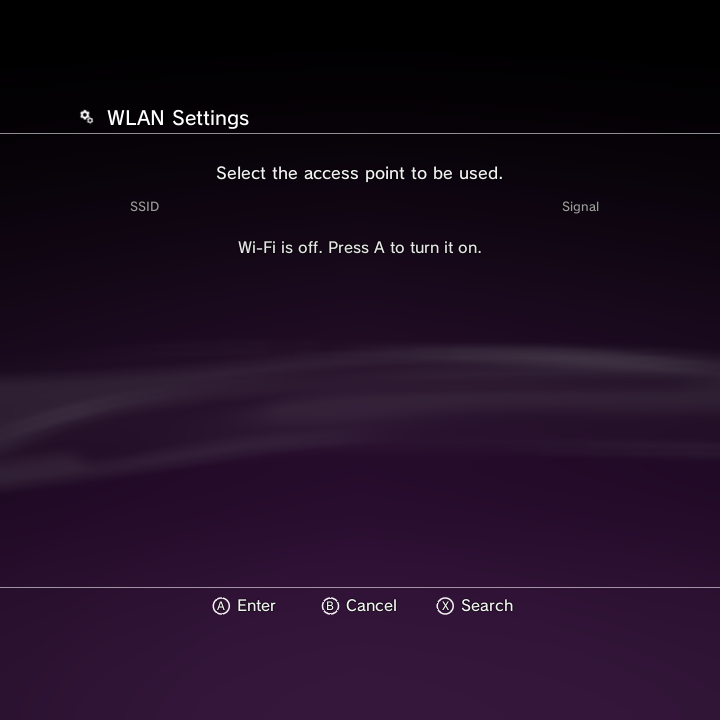
If Wi-Fi is off
If you open the network list with the radio turned off, the wizard shows a clear prompt to turn Wi-Fi on rather than an empty list. Turn it on and the scan runs.
Change or forget a network
- Change Password on a saved network applies the new password directly.
- Forget properly removes a saved network so the device stops reconnecting to it.
Bluetooth
Bluetooth pairing lives in the same wizard, and the Bluetooth and Accessories screen shows the on/off toggle even when Bluetooth is currently off, so you can turn it back on without hunting for it.
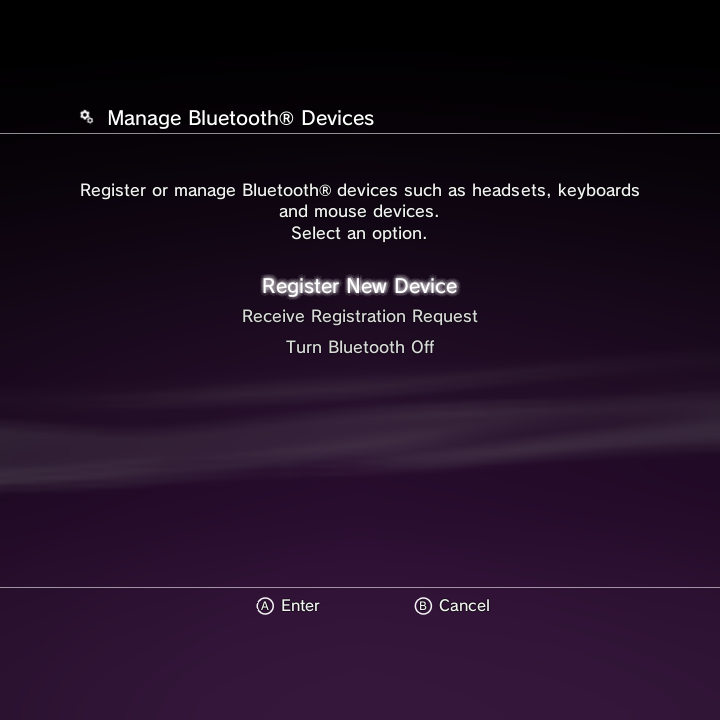
Bluetooth stays off when you turn it off. Opening the device list or scanning for devices no longer switches the radio back on behind your back. Only the Turn On toggle (or the Bluetooth tile in the Quick Menu) turns Bluetooth on, so it stays off and saves battery until you decide otherwise.
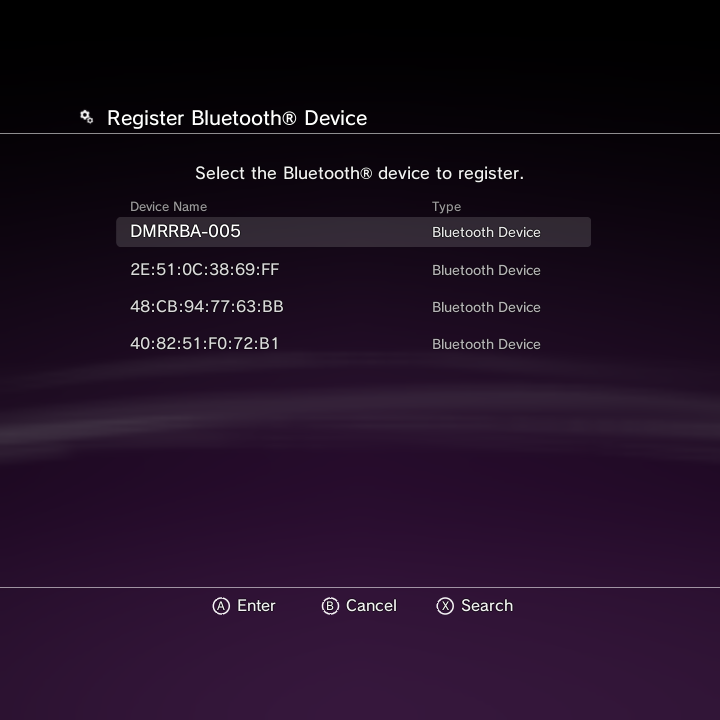
Device scanning uses native discovery, so nearby devices appear reliably. An already-paired device can be re-registered, and pairing codes are shown clearly so you can confirm them on both ends. Scanning, pairing and connecting all have real timeouts (Bluetooth pairing waits up to 80 seconds), so a slow accessory no longer leaves the screen hanging.
Wi-Fi after sleep (RG DS Plus)
On the RG DS Plus, Wi-Fi used to look connected after waking from sleep while nothing actually loaded, then drop and refuse to reconnect until a reboot (this is also what made boxart scraping fail after the device slept). Since 1.4.3 the Wi-Fi comes back by itself about two seconds after the device wakes.
Test your connection
Use Internet Connection Test to confirm your handheld can actually reach the internet after connecting. It is a handy check if a download or scrape is not working as expected.
If a boxart scrape or an online media browser fails, run the Internet Connection Test first to rule out a dropped connection.
Status at a glance
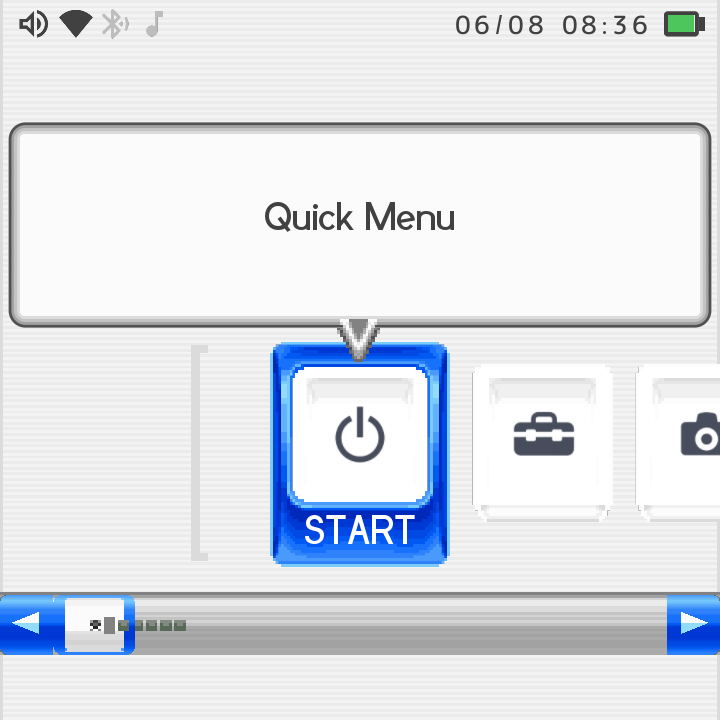
The HUD top bar shows your Wi-Fi signal and Bluetooth status at all times, so you can keep an eye on connectivity without opening Settings.
A resident system bridge pushes live Wi-Fi and Bluetooth state to the HUD and reads the settings-screen lists straight from framework data instead of parsing shell output, so the indicators and the network and device lists stay accurate and update quickly.
On single-screen 4:3 DSi layouts, a top status bar reserves space for the clock, Wi-Fi, Bluetooth and date, so the same connectivity indicators are visible in the DSi theme.
SD card paths stay stable
An SD card that is ejected and put back, or remounted, keeps the same volume id, so anything that points into it (a Syncthing folder, a Boxart Folder, a DraStic Data Folder or a ROM scan folder) keeps working instead of breaking after a remount.
Next steps
Once you are online, you can mount SMB, NFS, WebDAV, and FTP shares so files on another computer or NAS appear as if they were local. Head to Network Shares to set those up, or use Syncthing to keep folders such as your saves in sync with a PC or phone.